Edit Any Text or Data FileConvert Between Windows/DOS, Mac & UNIX/Linux
Many editors can't handle non-standard or huge files, and disk utilities that can often only allow the most primitive viewing and patching. Remember that single corrupted data file that took days to fix? Were you using vEdit?
vEdit has special features for mainframe, binary (e.g. executable .EXE) and database (e.g. dBase .DBF) files. With its power and speed, vEdit pro64 can quickly edit huge gigabyte files, too You can even convert data files with fixed-length records into standard text files with newlines, or vice-versa.
vEdit easily handles all text files. It even detects the correct file type and automatically displays it correctly. For example, Windows and DOS text files have a "newline" consisting of a Carriage-Return character followed by a Line-Feed (CR + LF). UNIX and Linux only use LF and Macintosh only uses CR. vEdit detects the correct file type and lets you convert easily from one type to another.
Handle Non-Standard Text Files No more choking on nasty control characters
Other editors choke when they hit embedded control characters or very long lines. vEdit can take pretty much anything you throw at it. That's something other text editors can't claim. For example, can your text editor handle:
- "Null", Ctrl-Z, or other control characters
- Binary files and corrupted text files
- Data and binary files that don't have "newlines"
- 20Mb Postscript files and 50Mb database files
- 500MB CD-ROM files and 2GB DVD-ROM files
- Tough mainframe files without "newlines", or with EBCDIC characters
- Arduous dBase .DBF files with fixed length records and a complex header
ASCII, EBCDIC, Hex, Octal & BinaryDisplay Modes Let You Edit Many File Types
vEdit's special editing modes let you edit data/binary files as effortlessly as text files. File modes support DOS, Unix and Mac text files, plus data files with variable or fixed length records.
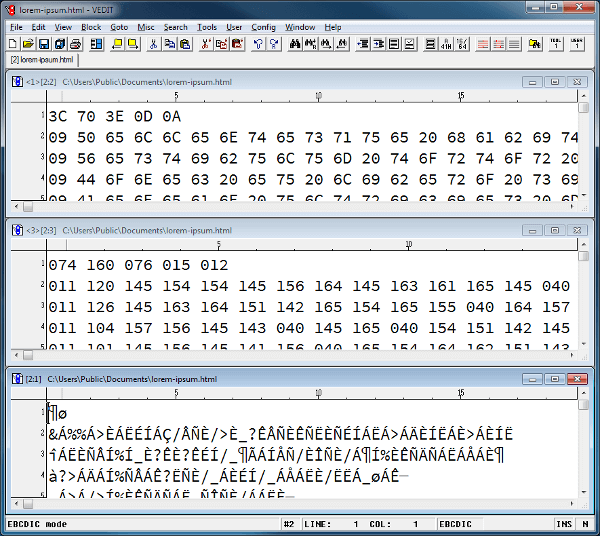
Display modes include five ASCII modes, Hexadecimal, Octal and EBCDIC, or split screen for any combination. A user created translation table can be used for custom display modes or for translating the file itself. Control and graphics characters can be displayed in a variety of different ways. Long lines can be edited with horizontal scrolling, or can be wrapped on the screen to see the entire line at once.
The "overwrite-only" mode ensures database and binary files aren't corrupted during editing. With block operations, VEDIT enables the "block fill" and "block overwrite" options by default.